Using Claude as a Learning Partner
Build a consistent learning habit with a Claude agent that prepares daily concepts and practice tasks.
Learning and adapting have always been crucial parts of software engineering. With AI tools, learning can become much easier and more interesting, too.
I thought I’d brush up on my Docker skills to refresh my memory, since I hadn’t run Docker commands manually recently (thanks to agents :P). So I wondered how I could use Claude as a learning partner. I wanted a consistent, ongoing learning experience and not just a one-off “teach me Docker” session.
So I built a Claude agent to act as a learning partner. It would prepare a set of concepts and tasks for me to learn and practice. I also wanted this to happen every day, so I could learn a little at a time. I created a routine for the agent to run every day at 8:00 a.m. and prepare the concepts and tasks for me to work through. This was a really easy process. Here’s how:
First, I created a folder on my local drive (for example, docker-learning).
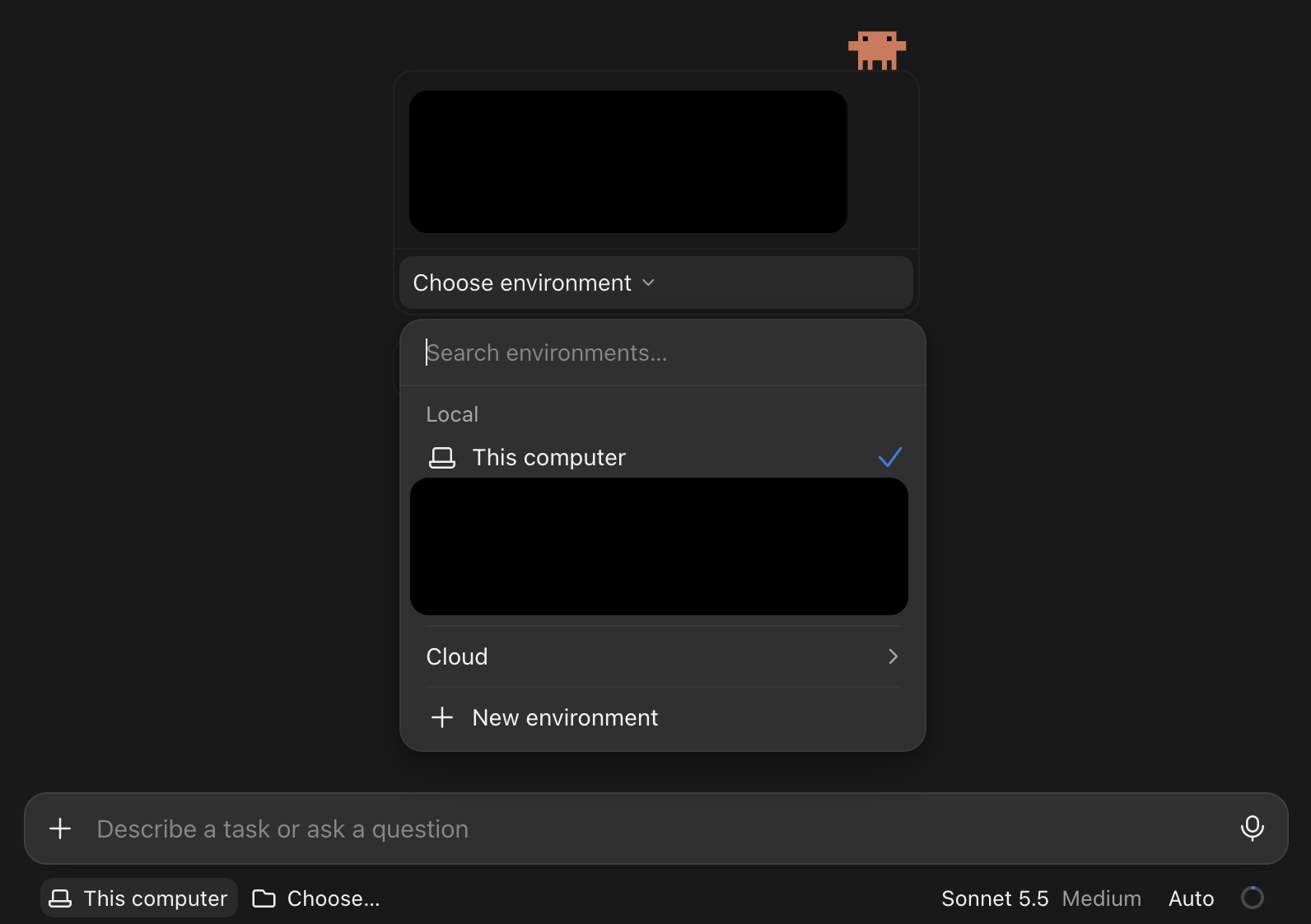
Then, in Claude Desktop, I went to the Code tab and created a new chat. From the “Choose environment” menu, I selected the folder I’d created. It opened as a new workspace.
After that, I created the agent by sending this prompt:
I want to use this workspace as a learning space to learn Docker. I want to practice Docker commands and theories daily. Set up an agent and create a routine to give me Docker tasks to perform every day at 8:00 a.m.
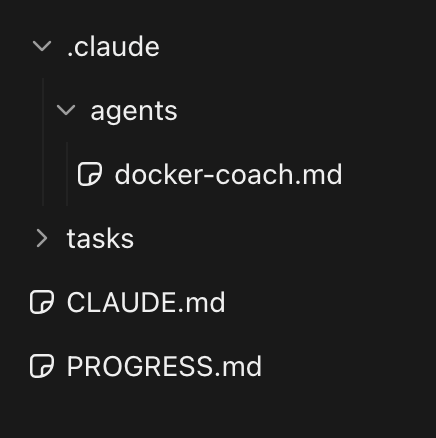
With this prompt, Claude set up the CLAUDE.md file with instructions and created an agent in the .claude/agents directory inside the docker-learning folder. It also created a Progress.md file to track my learning progress and a routine to run the agent every day around 8:00 a.m.
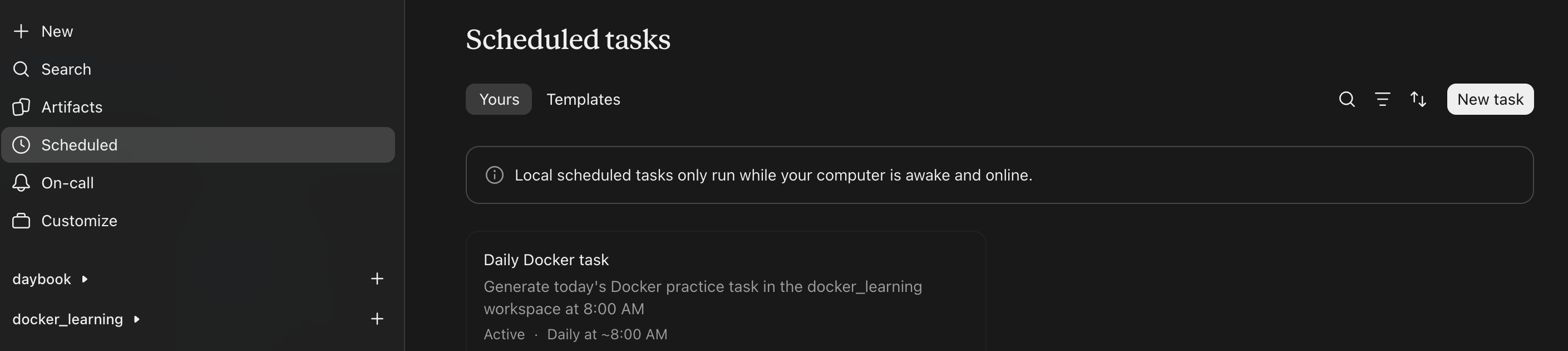
You can find the routine in the Scheduled tab in Claude Desktop.
In my case, Claude created the agent file docker-coach.md (it might have a different name for you). I can invoke this agent with @docker-coach.md

Here’s a task the agent created for me. It also included a set of questions and verification scripts.
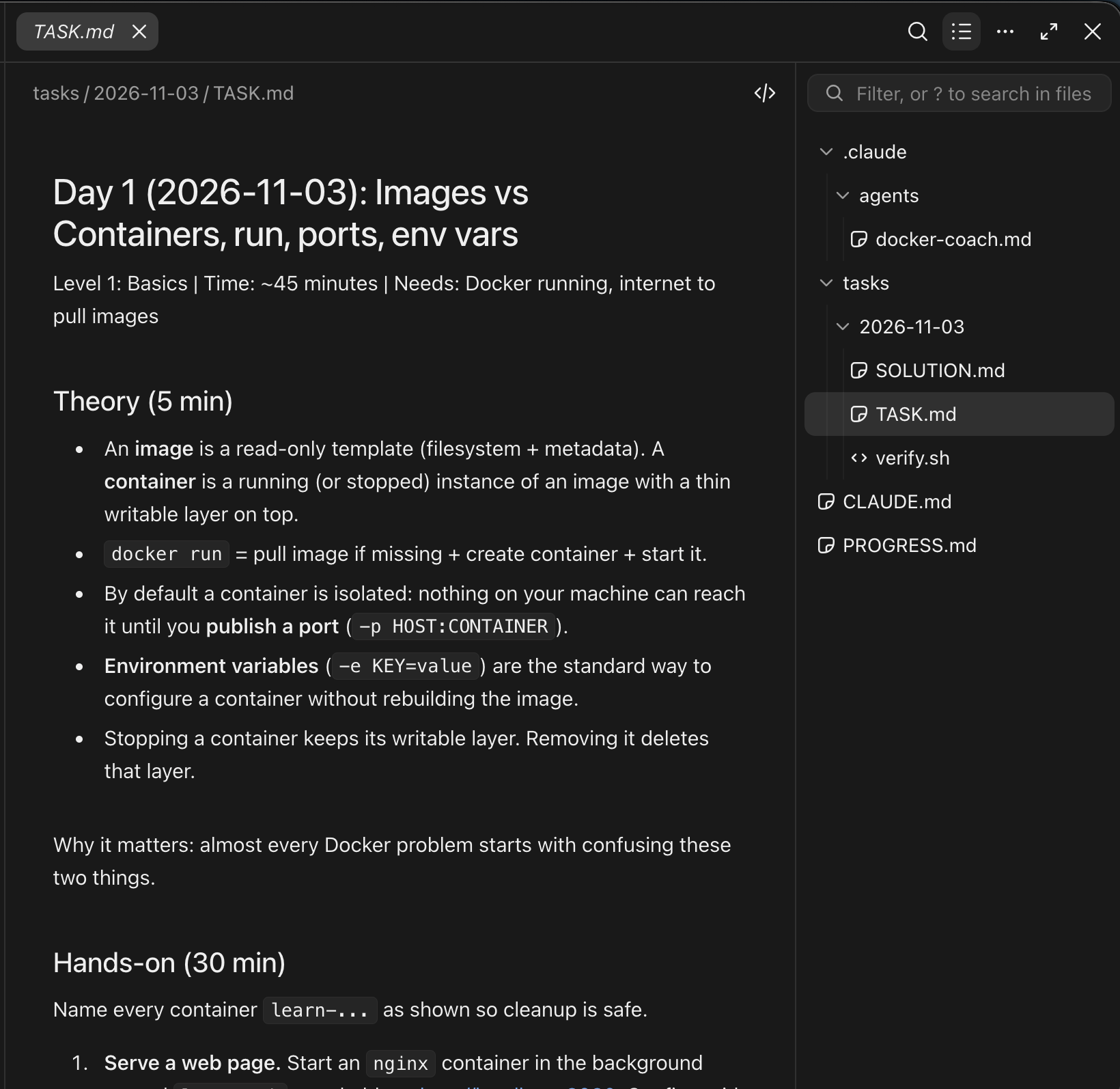
We can fine-tune any of these to our liking by asking Claude to update the agent. For example: Update the agent to include reference links for each theory.
We can also take this a step further by moving the workspace to a cloud session. Just create a GitHub repository and connect it to Claude. If you have the GitHub CLI installed, you can just ask Claude to create a repository and move the session to the cloud.
Once the session is in the cloud, your laptop doesn’t need to stay awake. Claude can run the routines there, and you can check them in the Claude mobile app.
As you can see, learning has never been easier. We can follow a similar approach to learn any topic and, more importantly, do so consistently.